Click the link “System Initialization” in the left navigation menu and the following screen will be displayed.
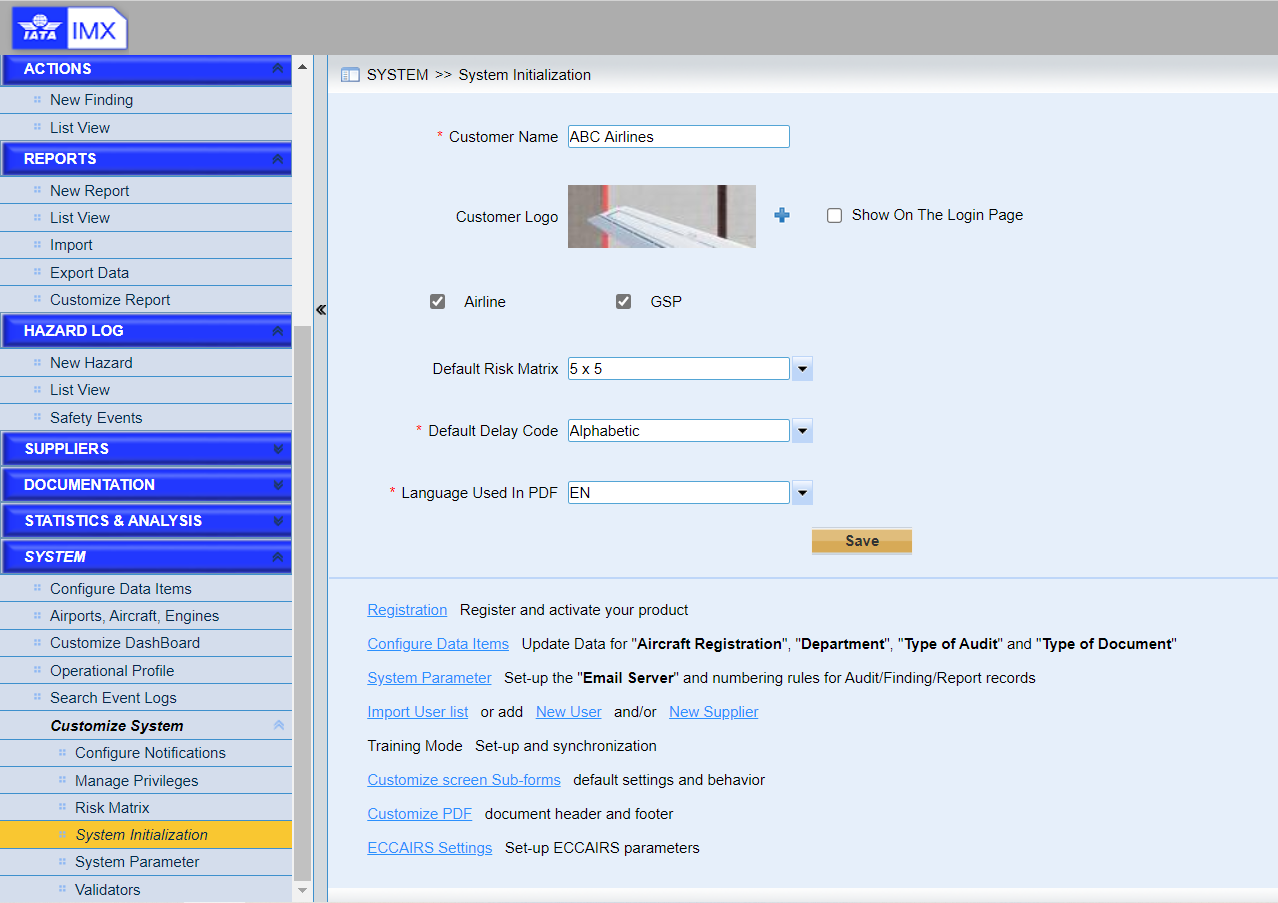
This page provides users to configure some basic data for the initialization of the system. Besides, this page provides links to other pages to configure other basic data.
Here are detailed introductions of the page.
•Configure the cumtomer name
•Upload the customer logo
The airline logo can be displayed in all of the pdf documents compiled.
• Tick the checkbox “Show on The Login Page” if you want to show the Logo.
•Configure Airline and GSP.
If you are an airline, please tick “Airline”, or if you are one ground service provider, please tick “GSP”.
•Configure the default risk matrix
•Configure the default delay code.
•Configure the font used in PDF document
Choose the language you want to enter in the PDF document.
•Click this “Save” button to save the initializations.
•Helpful links. Helpful links are provided here to facilitate the navigation.
➢Registration. Click this link to register IMX. Please refer to the section 5.10.1 to get more details.
➢Configure Data Item. Click this link to configure the data used for other modules, such as aircraft registration, department, type of document and so on.
➢System Parameter. Click this link to set up "Email Server" and numbering rules for Audit/Finding/Report records.
➢Import User List. Click this link to import users with templates.
➢Training mode. Click this link to activate the training mode for IMX system. Please refer to the section 5.10.2 to get more details.
➢Customize screen Sub-forms. Click this link to customize the sub-forms behaviors.
➢Customize PDF. Click this link to customize the PDF documents.
➢ECCAIRS settings. Click this link to activate the ECCAIRS mode.